Tampilkan postingan dengan label xiaomi. Tampilkan semua postingan

Sabtu, 09 September 2017

Download best iOS 11 Theme for any Xiaomi Mi Devices MIUI 8 [.mtz]

Now you can install iOS 11 theme on you MI Phone based on MIUI 8.This theme is really outstanding.This iOS 11 theme for mini phone is fully featured theme with themed system UI components.This theme is not for lineage os theme its only for MIUI 8 Based theme.

It really looks real iOS 11 the developer of this theme really done a great job in creating this great iOS 11 theme for below MI Device.You can check the screenshot of iOS 11 theme for Xiaomi MI phones.

Supported Devices for iOS 11 theme: 


  1. Xiaomi Redmi note 3 Snapdragon
  2. Xiaomi redmi note 3 Mediatek
  3. Xiaomi redmi note 2
  4. Xiaomi redmi note 2 Prime
  5. Xiaomi redmi note 3G
  6. Xiaomi redmi Note 4G
  7. Xiaomi Mi max
  8. Xiaomi Redmi 3s
  9. Xiaomi redmi 3s Prime
  10. Xiaomi redmi 2s
  11. Xiaomi redmi 2s Prime
  12. Xiaomi redmi 1s
  13. Xiaomi Redmi note 4
  14. Xiaomi Mi 5
  15. Xiaomi mi 4 / Mi 4i / Mi 4c
  16. Xiaomi mi 3
  17. Xiaomi mi note 2
  18. Xiaomi Mi mix

#Screenshots


#Download


1.Download iOS 11 theme for MI Phones


How to install iOS 11 themes on Xiaomi MIUI phones

Step 1: Once you’ve downloaded the MIUI theme in .mtz extension on your computer, copy the same into your device storage or SD card using a standard USB cable.

Step 2: Go to app drawer on your device and launch the Themes app.

Step 3: Under Theme tab, you need to select Offline.


Step 4: Here you’ll see the list of all offline themes that comes pre-installed within your smartphone.


Step 5: Scroll down and tap on Import.


Step 7: Now, access to the appropriate folder, and tap the .mtz theme file which you have saved to device storage.

Step 8: The theme will install and it will be shown along with other offline themes.

Step 9: Select the theme and tap on “Apply”.

That’s it! The new theme will be automatically applied on your device.

Note: The above guide is compatible only with Xiaomi Mi & Redmi phones running on MIUI 8. If you’re have a Xiaomi phone with other version, then there is chances that the steps and screenshots will be different.

[Official] Unduh MIUI 9 for Xiaomi Mi 6 [Global]

Welcome to lineageosroms as we all know MIUI 9 (based on android Nougat 7.0)will be the next latest android OS for All Xiaomi devices and you are curious to know which device will get MIUI 9 that is based on latest android Nougat 7.0 in this tutorial we explained how to download MIUI 9 rom and install latest MIUI 9 rom on Xiaomi Mi 6 .Are you curious to test the latest stable verison of your device but haven’t received the update.Do not be upset, you can still enjoy the ROM by unduh from the below steps.

Download MIUI 9 Rom for any Xiaomi Device.The Xiaomi Mi 6  sports a 13-megapixel rear camera with PDAF (phase detection autofocus), an f/2.0 aperture and dual-tone LED flash. The 5-megapixel front camera sports an 84-degree wide angle lens.It comes with Snapdragon 625 Octacore Processor.It comes with 4100 mAh battery capacity which can last for more than two days with mixed usage.You can expand its memory upto 128 GB via a micro SD-Card.Today in this tutorial we are going to show you how you can install MIUI 9 on your Xiaomi Mi 6 .

Requirements:
1.This method is only for the Xiaomi Mi 6 .Do not try it on any other device.
2.It is advisable to take a backup of your device before proceeding further.
3.Ensure that your phone has at least 70-80% charged to prevent the accidental shutdown in-between the process.

Downloads

1.Download MIUI 9 for Xiaomi Mi 6  Qualcomm /4X


How TO INSTALL MIUI 9 On Xiaomi Mi 6 

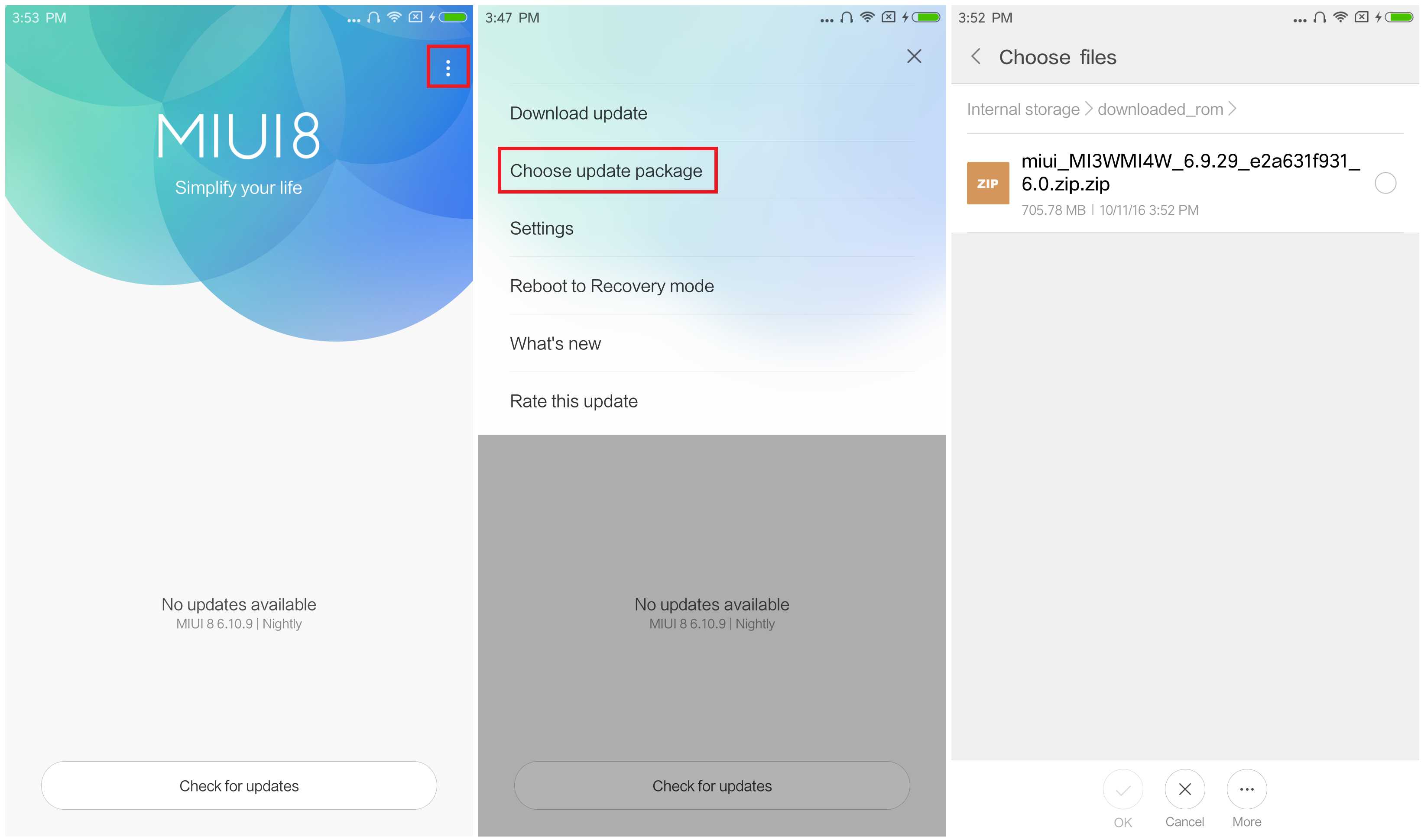
  • Connect your device to the Windows PC/laptop via a micro USB cable, and copy the ROM file downloaded in Step 1 into the folder ‘downloaded_rom’ in the internal storage of your device.
  • Launch ‘Updater’ app on your device:


  • MIUI 6/7/8:Click the ‘…’ icon at the top-right corner, select ‘Choose update package’, and choose the ROM file you’ve put in ‘downloaded_rom’ in Step 2.
  • MIUI V5:Press the Menu button, select ‘Choose update package’, and choose the ROM file you’ve put in ‘downloaded_rom’ in Step 2.
  • After choosing the right ROM file, your device will begin upgrading. Your device should automatically boot to the new version when the update is completed.
  • After choosing the right ROM file, your device will begin upgrading. Your device should automatically boot to the new version when the update is completed.

lineagosrom.com is not responsible for any damage happened to your device(s) while following this guide, Proceed at your own risk.Install MIUI 9 rom at your own risk.


If you see the following image after rebooting, it means that you have succeeded in flashing MIUI ROM.

If still any queries left in your mind, feel free to ask via comment section.

[Unofficial] Unduh Android Oreo ROM Mi4 (Cancro) Oreo 8.0

Download Unofficial Android Oreo For Mi4 (Cancro) Oreo 8.0. Unofficial Android Oreo is based on the Android Open Source Project with extra contributions from many people within the Android community. It can be used without any need to have any Google application installed. Unofficial Android Oreo does still include various hardware-specific code, which is also slowly being open-sourced anyway.


DISCLAIMER:


THIS IS AN INITIAL BUILD WHICH MAY NOT BOOT AT ALL. HAVE A BACKUP BEFORE FLASHING THIS AND TRY AT YOUR OWN RISK.

Installing a custom ROM on a Mi4 (Cancro) requires the bootloader to be unlocked on the Mi4 (Cancro) phone, which may VOID your warranty and may delete all your data. Before proceeding further you may consider backup all data on the phone. You are the only person doing changes to your phone and I cannot be held responsible for the mistakes done by you.Learn more about Android Oreo here.

Status of Unofficial Android Oreo for Mi4 (Cancro) Oreo 8.0 Custom ROM:

Whats working?
Ril
Camera
Wifi
Bluetooth
Sensors
Everything that is important
Whats not?
Nothing major


Before Starting

Take care of following tasks before you proceed with flashing custom ROM:
Task 1: Install USB drivers for your device on your PC.
Task 2: Be sure to backup your data including Contacts, SMS / MMS, APN & MMS Settings as well as photos and videos stored on your device’s internal or external storage.
Task 3: Make sure that your device is well charged. Ideally, the battery level should be around 60-80%. The more the better.
Task 4: USB Debugging should be enabled on your device.
Important: Most of the custom ROM will not have Google Apps in them. So, you will have to unduh and install GApps manually.Also take nandroid backup before installing

Done with preliminary precautionary steps? So, here’s the guide:

TWRP recovery let’s you do a number of cool stuff but the whole point of having a custom recovery is to be able to flash unsigned .zip files. These .zip files could be anything from a custom kernel, boot, recovery, MODs or full custom ROMs.


Let’s see how to flash a Android Oreo rom on Mi4 (Cancro) using TWRP recovery.

How to Install a unofficial Android Oreo on Mi4 (Cancro)


  1. Download and transfer the unofficial Android Oreo ROM and Gapps for android oreo you wish to flash to your device’s storage.
  2. Boot your device into TWRP recovery.
  3. Select “Wipe” from TWRP main menu and do a “Swipe to Factory Reset” on the bottom of screen.
    └ Note: This will factory reset your device. If your custom ROM doesn’t require a factory reset, then simply skip this step.
  4. Go back to TWRP main menu, tap on “Install” and select the unofficial Android Oreo  ROM .zip file and gapps for Android Oreo that you transferred to your device in Step 1.
  5. After selecting the .zip file, do “Swipe to Confirm Flash” on the bottom of screen to begin the custom ROM installation process. This may take some time.
  6. Once your ROM is successfully flashed, you’ll see “Wipe cache/dalvik” option, select it and then do “Swipe to wipe” on bottom of screen.
  7. Once cache & dalvik wipe completes, hit the “Back” button on-screen and then select “Reboot System” button.

DOWNLOAD UNOFFICIAL ANDROID OREO FOR Mi4 (Cancro)


1.Download Gapps for Unofficial Android Oreo 8.0

2.How to Root Android Oreo


source: XDA

[Unofficial] Unduh Android Oreo ROM Mi3 (Cancro) Oreo 8.0

Download Unofficial Android Oreo For Xiaomi Mi3 (Cancro) Oreo 8.0. Unofficial Android Oreo is based on the Android Open Source Project with extra contributions from many people within the Android community. It can be used without any need to have any Google application installed. Unofficial Android Oreo does still include various hardware-specific code, which is also slowly being open-sourced anyway.


DISCLAIMER:


THIS IS AN INITIAL BUILD WHICH MAY NOT BOOT AT ALL. HAVE A BACKUP BEFORE FLASHING THIS AND TRY AT YOUR OWN RISK.

Installing a custom ROM on a Xiaomi Mi3 (Cancro) requires the bootloader to be unlocked on the Xiaomi Mi3 (Cancro) phone, which may VOID your warranty and may delete all your data. Before proceeding further you may consider backup all data on the phone. You are the only person doing changes to your phone and I cannot be held responsible for the mistakes done by you.Learn more about Android Oreo here.

Status of Unofficial Android Oreo for Xiaomi Mi3 (Cancro) Oreo 8.0 Custom ROM:

Whats working?
Ril
Camera
Wifi
Bluetooth
Sensors
Everything that is important
Whats not?
Nothing major


Before Starting

Take care of following tasks before you proceed with flashing custom ROM:
Task 1: Install USB drivers for your device on your PC.
Task 2: Be sure to backup your data including Contacts, SMS / MMS, APN & MMS Settings as well as photos and videos stored on your device’s internal or external storage.
Task 3: Make sure that your device is well charged. Ideally, the battery level should be around 60-80%. The more the better.
Task 4: USB Debugging should be enabled on your device.
Important: Most of the custom ROM will not have Google Apps in them. So, you will have to unduh and install GApps manually.Also take nandroid backup before installing

Done with preliminary precautionary steps? So, here’s the guide:

TWRP recovery let’s you do a number of cool stuff but the whole point of having a custom recovery is to be able to flash unsigned .zip files. These .zip files could be anything from a custom kernel, boot, recovery, MODs or full custom ROMs.


Let’s see how to flash a Android Oreo rom on Xiaomi Mi3 (Cancro) using TWRP recovery.

How to Install a unofficial Android Oreo on Xiaomi Mi3 (Cancro)


  1. Download and transfer the unofficial Android Oreo ROM and Gapps for android oreo 8.0 you wish to flash to your device’s storage.
  2. Boot your device into TWRP recovery.
  3. Select “Wipe” from TWRP main menu and do a “Swipe to Factory Reset” on the bottom of screen.
    └ Note: This will factory reset your device. If your custom ROM doesn’t require a factory reset, then simply skip this step.
  4. Go back to TWRP main menu, tap on “Install” and select the unofficial Android Oreo  ROM .zip file and gapps for Android Oreo that you transferred to your device in Step 1.
  5. After selecting the .zip file, do “Swipe to Confirm Flash” on the bottom of screen to begin the custom ROM installation process. This may take some time.
  6. Once your ROM is successfully flashed, you’ll see “Wipe cache/dalvik” option, select it and then do “Swipe to wipe” on bottom of screen.
  7. Once cache & dalvik wipe completes, hit the “Back” button on-screen and then select “Reboot System” button.

DOWNLOAD UNOFFICIAL ANDROID OREO FOR Xiaomi Mi3 (Cancro)


1.Download Gapps for Unofficial Android Oreo 8.0

2.How to Root Android Oreo


source: XDA

[LOS 15] Unduh Lineage OS 15 Oreo 8.0 Redmi Note 4 (Mido)

Download Lineage OS 15 Android Oreo 8.0 For Redmi Note 4 (Mido). Lineage OS 15 Android Oreo 8.0 is based on the Android Open Source Project with extra contributions from many people within the Android community. It can be used without any need to have any Google application installed. Lineage OS 15 Android Oreo 8.0 does still include various hardware-specific code, which is also slowly being open-sourced anyway.


DISCLAIMER:


THIS IS AN INITIAL BUILD WHICH MAY NOT BOOT AT ALL. HAVE A BACKUP BEFORE FLASHING THIS AND TRY AT YOUR OWN RISK.

Installing a custom ROM on a Redmi Note 4 (Mido) requires the bootloader to be unlocked on the Redmi Note 4 (Mido) phone, which may VOID your warranty and may delete all your data. Before proceeding further you may consider backup all data on the phone. You are the only person doing changes to your phone and I cannot be held responsible for the mistakes done by you.

Status of  Lineage OS 15 Oreo 8.0 for Redmi Note 4 (Mido) Custom ROM:

WHAT’S WORKING:
– Not Known
KNOWN ISSUES:
– Not Known


Before Starting

Take care of following tasks before you proceed with flashing custom ROM:
Task 1: Install USB drivers for your device on your PC.
Task 2: Be sure to backup your data including Contacts, SMS / MMS, APN & MMS Settings as well as photos and videos stored on your device’s internal or external storage.
Task 3: Make sure that your device is well charged. Ideally, the battery level should be around 60-80%. The more the better.
Task 4: USB Debugging should be enabled on your device.
Important: Most of the custom ROM will not have Google Apps in them. So, you will have to unduh and install GApps manually.Also take nandroid backup before installing

Done with preliminary precautionary steps? So, here’s the guide:

TWRP recovery let’s you do a number of cool stuff but the whole point of having a custom recovery is to be able to flash unsigned .zip files. These .zip files could be anything from a custom kernel, boot, recovery, MODs or full custom ROMs.


Let’s see how to flash a Lineage OS 15 Android Oreo 8.0 rom on Redmi Note 4 (Mido) using TWRP recovery.

How to Install a Lineage OS 15 on Redmi Note 4 (Mido) Oreo 8.0 


  1. Download and transfer the Lineage OS 15 Android Oreo 8.0 ROM and Gapps for lineage OS 15 you wish to flash to your device’s storage.
  2. Boot your device into TWRP recovery.
  3. Select “Wipe” from TWRP main menu and do a “Swipe to Factory Reset” on the bottom of screen.
    └ Note: This will factory reset your device. If your custom ROM doesn’t require a factory reset, then simply skip this step.
  4. Go back to TWRP main menu, tap on “Install” and select the Lineage OS 15 Android Oreo 8.0  ROM .zip file and gapps for Android oreo 8.0 that you transferred to your device in Step 1.
  5. After selecting the .zip file, do “Swipe to Confirm Flash” on the bottom of screen to begin the custom ROM installation process. This may take some time.
  6. Once your ROM is successfully flashed, you’ll see “Wipe cache/dalvik” option, select it and then do “Swipe to wipe” on bottom of screen.
  7. Once cache & dalvik wipe completes, hit the “Back” button on-screen and then select “Reboot System” button.

#Video on how to install Lineageos 15 rom


DOWNLOAD LINEAGE OS 15 ANDROID OREO 8.0 FOR Redmi Note 4 (Mido)


1.Download Gapps for Lineage OS 15 Oreo 8.0

2.How to Root Lineage OS 15 rom Easily

[LOS 15] Unduh LineageOS 15 Oreo 8.0 Xiaomi Mi4c (Libra)

Download LineageOS 15 Android Oreo 8.0 For Xiaomi Mi4c (Libra). Lineage OS 15 Android Oreo 8.0 is based on the Android Open Source Project with extra contributions from many people within the Android community. It can be used without any need to have any Google application installed. Lineage OS 15 Android Oreo 8.0 does still include various hardware-specific code, which is also slowly being open-sourced anyway.


DISCLAIMER:


THIS IS AN INITIAL BUILD WHICH MAY NOT BOOT AT ALL. HAVE A BACKUP BEFORE FLASHING THIS AND TRY AT YOUR OWN RISK.

Installing a custom ROM on a Xiaomi Mi4c (Libra) requires the bootloader to be unlocked on the Xiaomi Mi4c (Libra) phone, which may VOID your warranty and may delete all your data. Before proceeding further you may consider backup all data on the phone. You are the only person doing changes to your phone and I cannot be held responsible for the mistakes done by you.

Status of  Lineage OS 15 Oreo 8.0 for Xiaomi Mi4c (Libra) Custom ROM:

WHAT’S WORKING:
– Not Known
KNOWN ISSUES:
– Not Known


Before Starting

Take care of following tasks before you proceed with flashing custom ROM:
Task 1: Install USB drivers for your device on your PC.
Task 2: Be sure to backup your data including Contacts, SMS / MMS, APN & MMS Settings as well as photos and videos stored on your device’s internal or external storage.
Task 3: Make sure that your device is well charged. Ideally, the battery level should be around 60-80%. The more the better.
Task 4: USB Debugging should be enabled on your device.
Important: Most of the custom ROM will not have Google Apps in them. So, you will have to unduh and install GApps manually.Also take nandroid backup before installing

Done with preliminary precautionary steps? So, here’s the guide:

TWRP recovery let’s you do a number of cool stuff but the whole point of having a custom recovery is to be able to flash unsigned .zip files. These .zip files could be anything from a custom kernel, boot, recovery, MODs or full custom ROMs.


Let’s see how to flash a Lineage OS 15 Android Oreo 8.0 rom on Xiaomi Mi4c (Libra) using TWRP recovery.

How to Install a Lineage OS 15 on Xiaomi Mi4c (Libra) Oreo 8.0 


  1. Download and transfer the Lineage OS 15 Android Oreo 8.0 ROM and Gapps for lineage OS 15 you wish to flash to your device’s storage.
  2. Boot your device into TWRP recovery.
  3. Select “Wipe” from TWRP main menu and do a “Swipe to Factory Reset” on the bottom of screen.
    └ Note: This will factory reset your device. If your custom ROM doesn’t require a factory reset, then simply skip this step.
  4. Go back to TWRP main menu, tap on “Install” and select the Lineage OS 15 Android Oreo 8.0  ROM .zip file and gapps for Android oreo 8.0 that you transferred to your device in Step 1.
  5. After selecting the .zip file, do “Swipe to Confirm Flash” on the bottom of screen to begin the custom ROM installation process. This may take some time.
  6. Once your ROM is successfully flashed, you’ll see “Wipe cache/dalvik” option, select it and then do “Swipe to wipe” on bottom of screen.
  7. Once cache & dalvik wipe completes, hit the “Back” button on-screen and then select “Reboot System” button.

#Video on how to install Lineageos 15 rom

DOWNLOAD LINEAGE OS 15 ANDROID OREO 8.0 FOR Xiaomi Mi4c (Libra)


1.Download Gapps for Lineage OS 15 Oreo 8.0

2.How to Root Lineage OS 15 rom Easily

[Oreo] Unduh Android Oreo 8.0 rom For Redmi Note 3 (Kenzo/kate)

Download Lineage OS 15 Android Oreo 8.0 For Redmi Note 3 (Kenzo/kate) . Lineage OS 15 Android Oreo 8.0 is based on the Android Open Source Project with extra contributions from many people within the Android community. It can be used without any need to have any Google application installed. Lineage OS 15 Android Oreo 8.0 does still include various hardware-specific code, which is also slowly being open-sourced anyway.


DISCLAIMER:


THIS IS AN INITIAL BUILD WHICH MAY NOT BOOT AT ALL. HAVE A BACKUP BEFORE FLASHING THIS AND TRY AT YOUR OWN RISK.

Installing a custom ROM on a Redmi Note 3 (Kenzo/kate) requires the bootloader to be unlocked on the Redmi Note 3 (Kenzo/kate)  phone, which may VOID your warranty and may delete all your data. Before proceeding further you may consider backup all data on the phone. You are the only person doing changes to your phone and I cannot be held responsible for the mistakes done by you.

Status of  Lineage OS 15 Oreo 8.0 for Redmi Note 3 (Kenzo/kate) Custom ROM:

WHAT’S WORKING:
– Not Known
KNOWN ISSUES:
– Not Known


Before Starting

Take care of following tasks before you proceed with flashing custom ROM:
Task 1: Install USB drivers for your device on your PC.
Task 2: Be sure to backup your data including Contacts, SMS / MMS, APN & MMS Settings as well as photos and videos stored on your device’s internal or external storage.
Task 3: Make sure that your device is well charged. Ideally, the battery level should be around 60-80%. The more the better.
Task 4: USB Debugging should be enabled on your device.
Important: Most of the custom ROM will not have Google Apps in them. So, you will have to unduh and install GApps manually.Also take nandroid backup before installing

Done with preliminary precautionary steps? So, here’s the guide:

TWRP recovery let’s you do a number of cool stuff but the whole point of having a custom recovery is to be able to flash unsigned .zip files. These .zip files could be anything from a custom kernel, boot, recovery, MODs or full custom ROMs.


Let’s see how to flash a Lineage OS 15 Android Oreo 8.0 rom on Redmi Note 3 (Kenzo/kate)  using TWRP recovery.

How to Install a Lineage OS 15 on Redmi Note 3 (Kenzo/kate)  Oreo 8.0 


  1. Download and transfer the Lineage OS 15 Android Oreo 8.0 ROM and Gapps for lineage OS 15 you wish to flash to your device’s storage.
  2. Boot your device into TWRP recovery.
  3. Select “Wipe” from TWRP main menu and do a “Swipe to Factory Reset” on the bottom of screen.
    └ Note: This will factory reset your device. If your custom ROM doesn’t require a factory reset, then simply skip this step.
  4. Go back to TWRP main menu, tap on “Install” and select the Lineage OS 15 Android Oreo 8.0  ROM .zip file and gapps for Android oreo 8.0 that you transferred to your device in Step 1.
  5. After selecting the .zip file, do “Swipe to Confirm Flash” on the bottom of screen to begin the custom ROM installation process. This may take some time.
  6. Once your ROM is successfully flashed, you’ll see “Wipe cache/dalvik” option, select it and then do “Swipe to wipe” on bottom of screen.
  7. Once cache & dalvik wipe completes, hit the “Back” button on-screen and then select “Reboot System” button.

#Video on how to install Lineageos 15 rom

DOWNLOAD LINEAGE OS 15 ANDROID OREO 8.0 FOR Redmi Note 3 (Kenzo/kate)


1.Download Gapps 8.0 for Oreo 8.0

2.How to Root android oreo 8.0 rom Easily